The Open Door You Don't Know About: 7 Router Settings Every American Household Should Fix Right Now
The Open Door You Don't Know About: 7 Router Settings Every American Household Should Fix Right Now
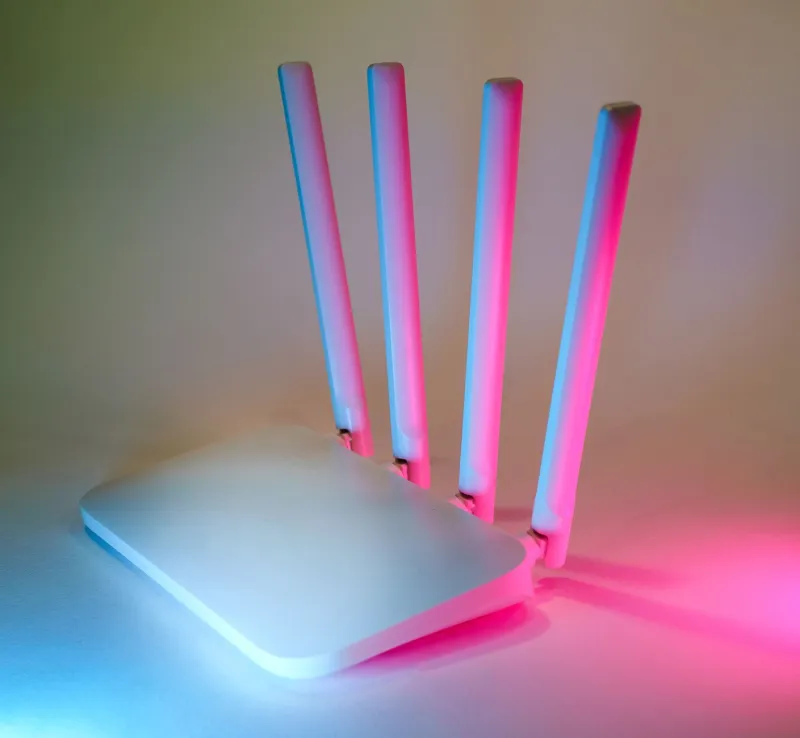
There is a small plastic box in most American homes that connects every device — laptops, phones, smart TVs, baby monitors, thermostats — to the internet. Most people set it up once, tuck it behind the couch, and never think about it again. That indifference is a gift to anyone looking for an easy way into a household's digital life.
Your router is not just a convenience appliance. It is the single point through which all of your internet traffic passes, and it is the first line of defense between your private network and the rest of the world. The problem is that most ISP-provided and consumer-grade routers ship with configurations designed for ease of setup, not security. What follows are seven of the most commonly overlooked settings, what each one actually risks, and exactly how to address it.
To access most of these settings, open a browser and navigate to your router's admin panel — typically found at 192.168.1.1 or 192.168.0.1. Your router's default address is usually printed on a label on the device itself.
1. Default Admin Credentials
The risk: Every router ships with a factory-set administrator username and password — combinations like admin/admin or admin/password that are publicly documented by manufacturers and indexed by tools attackers use routinely. If you have never changed yours, anyone who gains access to your local network (or, in some configurations, your router's remote-management interface) can log into your admin panel and reconfigure the device however they choose.
What an attacker can do: Redirect your DNS traffic so that legitimate website addresses take you to fraudulent lookalike pages, intercept unencrypted communications, or enroll your router in a botnet — a network of compromised devices used to launch attacks on others.
The fix: Log into your router's admin panel and navigate to the Administration or Management section. Change both the username (if your router allows it) and the password to something unique — a passphrase of at least 16 characters that you do not use anywhere else. Store it in a password manager.
2. Outdated Router Firmware
The risk: Router firmware is the software that runs the device. Manufacturers periodically release updates that patch security vulnerabilities — but unlike your phone or laptop, your router will not remind you to install them. Many households are running firmware that is years out of date, riddled with known vulnerabilities that have been publicly disclosed and, in some cases, actively exploited.
What an attacker can do: Known firmware vulnerabilities can allow remote code execution, credential theft, or full device compromise without any interaction from the user.
The fix: In your router's admin panel, look for a Firmware Update or Software Update section, usually under Administration or Advanced Settings. Check for updates and install any that are available. If your router supports automatic firmware updates, enable that feature. If your router model is several years old and the manufacturer has stopped releasing updates, consider replacing it — unsupported hardware is a permanent liability.
3. Remote Management Enabled
The risk: Many routers include a remote-management feature that allows the admin panel to be accessed from outside your home network — ostensibly useful for troubleshooting from a different location. In practice, this feature exposes your router's login interface directly to the public internet, where automated scanning tools probe it continuously.
What an attacker can do: Attempt brute-force login attacks against your admin credentials from anywhere in the world, without needing to be on your local network first.
The fix: In your admin panel, locate the Remote Management or WAN Access setting — often under Advanced or Administration. Unless you have a specific and ongoing need for remote access, disable it entirely.
4. Weak or Outdated Wi-Fi Encryption (WEP or WPA)
The risk: Wi-Fi encryption protocols determine how the data traveling between your devices and your router is scrambled. WEP (Wired Equivalent Privacy) was cracked decades ago and can be broken in minutes with freely available software. WPA (Wi-Fi Protected Access, the original version) is only marginally better. Both are still the default on some older routers and ISP-provided equipment.
What an attacker can do: Capture your Wi-Fi traffic and decrypt it, potentially exposing usernames, passwords, and other sensitive data transmitted over unencrypted connections.
The fix: In your router's Wireless Settings, look for the Security Mode or Encryption option. Select WPA3 if your router supports it. If not, select WPA2-AES (sometimes labeled WPA2-Personal). Avoid WEP, WPA (TKIP), or any Mixed mode that includes these older protocols.
5. A Weak or Default Wi-Fi Network Password
The risk: Even with modern encryption enabled, a short or predictable Wi-Fi password can be cracked through dictionary attacks — automated tools that systematically test millions of common password combinations. ISP-provided routers often ship with passwords printed on a label, which means anyone who has ever physically seen your router may know your network password.
What an attacker can do: Join your home network, observe unencrypted traffic, access shared files or devices, and use your internet connection for activities that could be traced back to your IP address.
The fix: In your Wireless Settings, change your Wi-Fi password (also called the network key or passphrase) to something at least 16 characters long, mixing letters, numbers, and symbols. Update the password on all your devices afterward.
6. UPnP (Universal Plug and Play) Left Enabled
The risk: UPnP is a protocol that allows devices on your network to automatically open ports in your router's firewall — a feature designed to make gaming consoles, smart home devices, and media servers work without manual configuration. The problem is that UPnP has no authentication mechanism. Any device on your network, including malware running on a compromised computer, can use UPnP to open ports and expose services to the internet.
What an attacker can do: Malicious software can exploit UPnP to create persistent backdoors into your network, or to route external attack traffic through your router.
The fix: In your router's Advanced or NAT settings, locate UPnP and disable it. Most home users do not need it. If a specific application stops working, you can manually configure the port forwarding it requires — a more controlled and auditable approach.
7. No Separate Guest Network for IoT Devices
The risk: Smart home devices — thermostats, cameras, voice assistants, connected appliances — are notoriously difficult to secure and infrequently updated by their manufacturers. When these devices share a network with your laptops and phones, a compromised smart bulb becomes a potential stepping stone to your more sensitive devices and data.
What an attacker can do: Pivot from a compromised low-security IoT device to other devices on the same network segment, potentially accessing stored files, saved passwords, or financial accounts.
The fix: Most modern routers support the creation of a Guest Network — a separate Wi-Fi network that is isolated from your primary one. Create a guest network and move all IoT and smart home devices onto it. Your computers and phones stay on the primary network, insulated from the less-secure devices.
A Final Word
None of these fixes require technical expertise. They require only a few minutes of attention and the willingness to log into a settings page most people have never visited. Your ISP is responsible for delivering your internet connection — it is not responsible for securing your home network once the signal crosses your threshold. That responsibility falls to you.
Think of your router as the front door to your digital home. You would not leave it unlocked, propped open, and fitted with a lock that came with a key the same as every other house on the block. The same logic applies here.